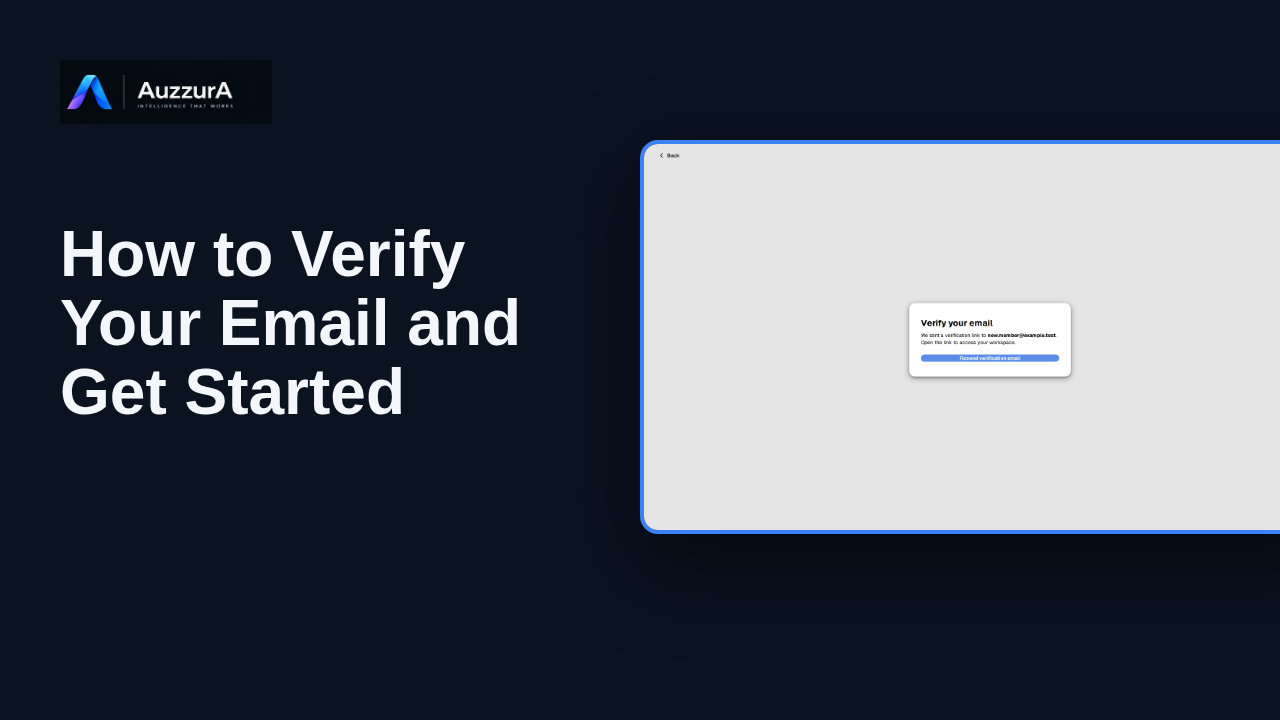
Verify your email and sign in
Confirm email verification before working and show the correct sign-in redirect. Before your first session, confirm that the email address belongs to you.
For: Newly registered user
How-to
See how public self-serve sign-up works from https://dm.auzzura.com/login, and what happens after you submit.
Read the steps OR watch the video. Both teach the same outcome, and neither is needed for the other.Jump to the video
What it means: This is the DM sign-in screen. You can create a DM account at https://dm.auzzura.com/login, free to try. Select Sign up under the form.
What it means: The form now asks for your name, your email address and a password. Use your own details. In this demonstration we use a sample identity, with an example address. Choose a strong password. It's hidden as you type. Double-check your email address, because that is where the verification link will be sent.
What it means: When you're ready, select Create account. DM doesn't assume you can start working straight away. It takes you to the next step instead.
What it means: DM now asks you to verify your email. The page names the address your verification link was sent to. Open that link from your inbox to continue. If it doesn't arrive, use Resend verification email on this page. A workspace invitation or an existing organization's own policy may require an additional approval before you can use that workspace.
What it means: Once your email is verified and access is available, sign in to DM and check your active workspace. In this demonstration, the sign-up and its confirmation are simulated, so no real account or email was created. If you already have an account, use the sign-in form instead. Next, let's verify your email and sign in.
A real account, email delivery, verification or access approval was not shown or verified. The sign-up response and the verification page come from simulated responses.
Google, Microsoft and GitHub sign-up were not started. Verifying the email address and signing in are the next episodes (HT-12 and HT-01).
Demo environment · sample identity · backend responses are simulated. Self-service sign-up, and what happens next
This guide follows the real DM sign-in screen in sign-up mode and the verification page that follows, with simulated backend responses and a sample identity. Whether sign-up is offered, and whether email verification or access approval is required, depends on your organization's DM setup.
Disclosure (kept in this transcript and the video description, not drawn on the frames): Demo environment · sample identity · backend responses are simulated.
On screen: Open the DM sign-in screen. Click "Sign up". The next view is "Make room forbetter decisions." (/login). A highlight marks "Sign up".
Narrator: This is the DM sign-in screen.
Narrator: If you don't have an invitation, you may be able to create your own account.
Narrator: Self-service sign-up depends on how your organization's DM is set up, so it isn't offered everywhere.
Narrator: When it's available, you'll see a Sign up link under the form.
Narrator: Select Sign up.
On screen: Type "Nora New" into the "Display name (optional)" field. Type "new.member@example.test" into the "Email" field. Enter a password (at least 8 characters) in the "Password" field. The value is not shown or recorded. A highlight marks "Your name". A highlight marks "Your email". A highlight marks "A strong password".
Narrator: The form now asks for your name, your email address and a password.
Narrator: Use your own details. In this demonstration we use a sample identity, with an example address.
Narrator: Choose a strong password. It's hidden as you type.
Narrator: Double-check your email address, because that is where the verification link will be sent.
On screen: Click "Create account". The next view is "Verify your email" (/verify-email). A highlight marks "Create account".
Narrator: When you're ready, select Create account.
Narrator: DM doesn't assume you can start working straight away. It takes you to the next step instead.
On screen: A highlight labelled "Verify your email" marks "Verify your email We sent a verification link to new.member@example.t…". A highlight labelled "Resend if it is missing" marks "Resend verification email".
Narrator: DM now asks you to verify your email.
Narrator: The page names the address your verification link was sent to.
Narrator: Open that link from your inbox to continue.
Narrator: If it doesn't arrive, use Resend verification email on this page.
Narrator: Depending on your organization's access policy, you may also need to wait for access to be approved before you can use everything.
On screen: A highlight labelled "Your next step" marks "Verify your email We sent a verification link to new.member@example.t…".
Narrator: Once your email is verified and access is available, sign in to DM and check your active workspace.
Narrator: In this demonstration, the sign-up and its confirmation are simulated, so no real account or email was created.
Narrator: If you already have an account, use the sign-in form instead.
Narrator: Next, let's verify your email and sign in.
Last verified against the product on .
Confirm email verification before working and show the correct sign-in redirect. Before your first session, confirm that the email address belongs to you.
For: Newly registered user
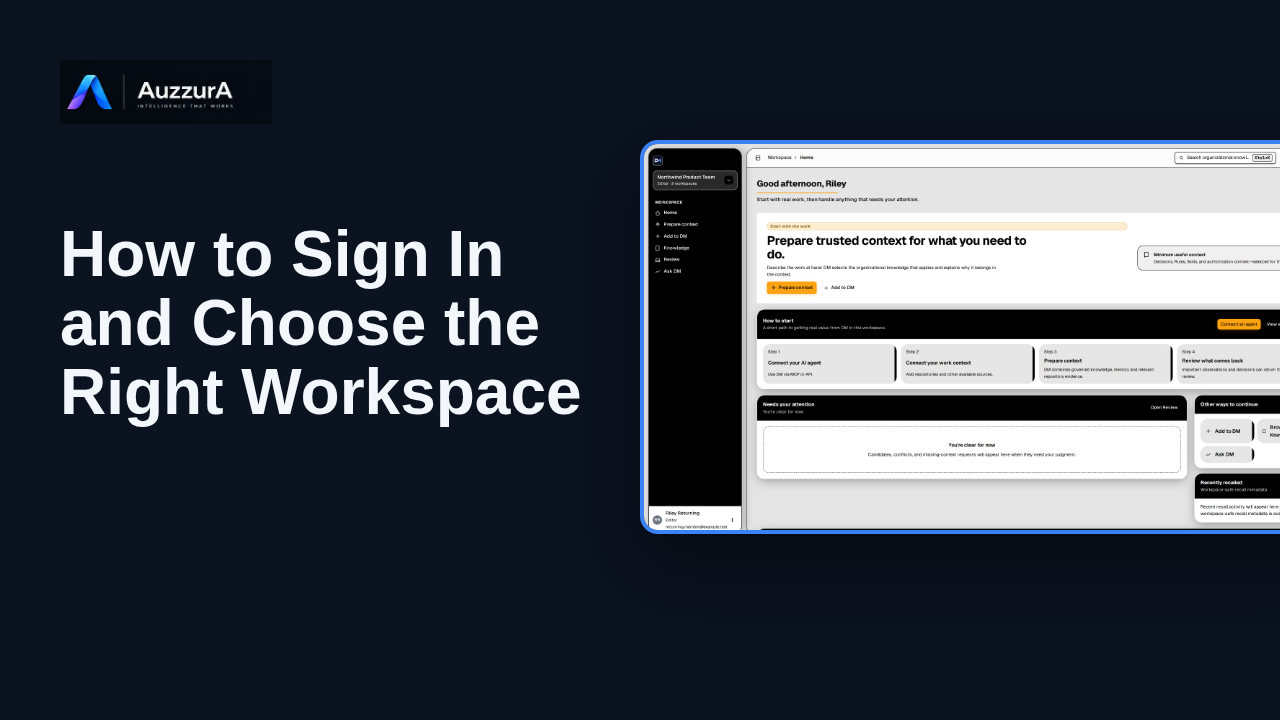
Confirm correct workspace and permissions before working. Already signed in? Before working, check which team workspace is active.
For: Invited pilot user
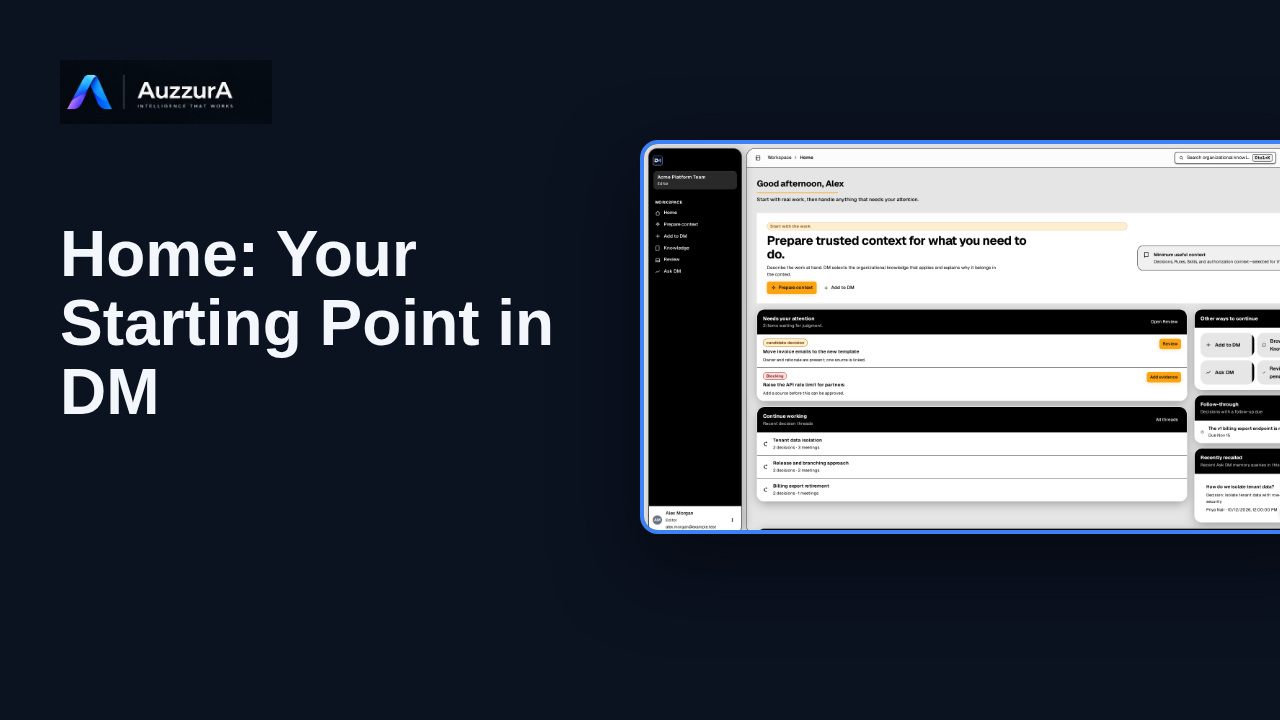
Orient new users to DM Home and the main areas that need attention.
For: Any signed-in workspace member
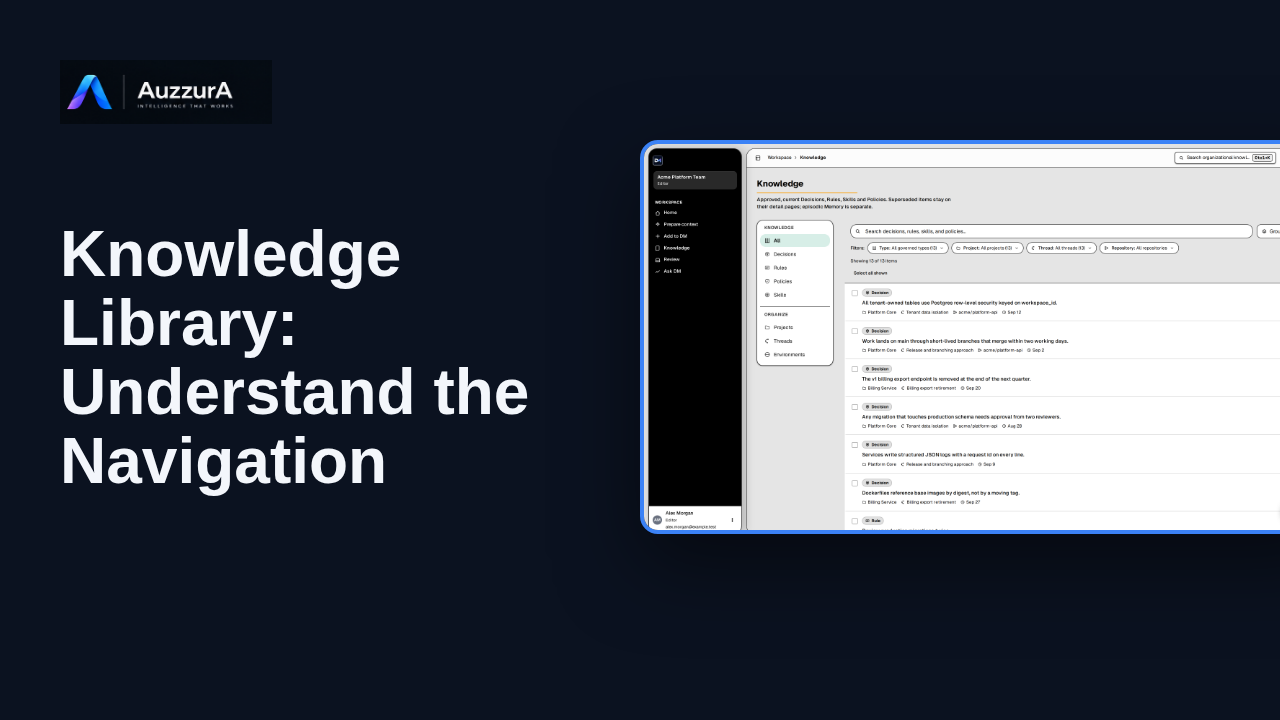
Find approved decisions, rules, skills and related team context in DM’s Knowledge library.
For: New workspace member