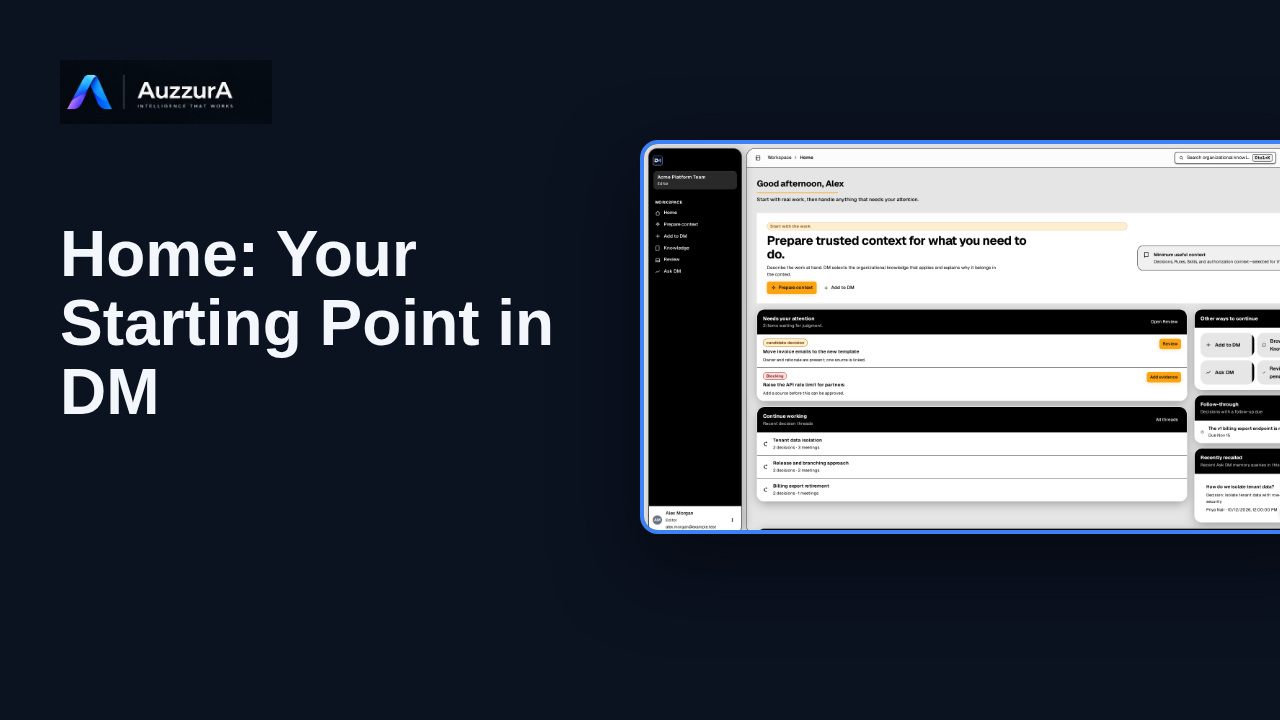
Home: your starting point in DM
Orient new users to DM Home and the main areas that need attention.
For: Any signed-in workspace member
Product tour
Find approved decisions, rules, skills and related team context in DM’s Knowledge library.
Read the steps OR watch the video. Both teach the same outcome, and neither is needed for the other.Jump to the video
What it means: Start from your DM Home. The navigation on the left is how you reach everything else in your workspace. Knowledge is where your team's approved decisions, rules, skills and related context become findable. You can also reach it from the Browse Knowledge shortcut on Home.
What it means: Select Knowledge in the main navigation. It opens with every approved item together.
What it means: This is the combined view. Everything your team has approved appears here in one list. Use the navigation on the left to narrow it to Decisions, Rules, Policies or Skills, according to your permissions. Each type has its own list when you only need one kind.
What it means: To find something, search by keyword. You can also group the list, for example by type or by project. The filters at the top narrow it by type, project, thread or repository, to focus on what matters.
What it means: Select an item to read it in the preview. You see its statement, the reason behind it and its metadata, so you can tell whether it is the one you need. Rules and skills show their own content in the same way. Open the full detail only when you need it.
What it means: Projects and Threads organize this context by the work it belongs to. Environments group context by where it applies. Other entries, such as Memory or Repositories, appear only when your workspace has that capability.
What it means: Everything in this library has been approved by a person. Suggestions that are still waiting for a decision are not part of it. They stay in Review until someone approves them. Memory, where your workspace has it, is supporting context. It is not part of this approved library. Next, explore Decisions, or learn how to search.
The decisions, rules, skills, policies, projects and threads shown are invented for this tour. Some navigation entries, such as Memory or Repositories, appear only when a workspace has that capability, and none is demonstrated here.
Graph views and repository intelligence are not part of this tour. Opening an item's full detail page is mentioned but not shown.
Demo environment · synthetic workspace and data · backend responses are simulated. Find the right kind of trusted context
This guide tours the real DM Knowledge library with a synthetic workspace and simulated backend responses. The entries and capabilities in your own workspace depend on your role and what your workspace has enabled.
Disclosure (kept in this transcript and the video description, not drawn on the frames): Demo environment · synthetic workspace and data · backend responses are simulated.
On screen: Start on DM Home (/). A highlight marks "Knowledge".
Narrator: Start from your DM Home.
Narrator: The navigation on the left is how you reach everything else in your workspace.
Narrator: Knowledge is where your team's approved decisions, rules, skills and related context become findable. You can also reach it from the Browse Knowledge shortcut on Home.
On screen: Click "Knowledge". The next view is "Knowledge" (/knowledge). A highlight marks "Knowledge". Afterwards: A highlight labelled "Knowledge library" marks "KNOWLEDGE All Decisions Rules Policies Skills ORGANIZE Projects Threa…".
Narrator: Select Knowledge in the main navigation. It opens with every approved item together.
On screen: A highlight labelled "Browse by type" marks "KNOWLEDGE".
Narrator: This is the combined view. Everything your team has approved appears here in one list.
Narrator: Use the navigation on the left to narrow it to Decisions, Rules, Policies or Skills, according to your permissions. Each type has its own list when you only need one kind.
On screen: A highlight marks "Search".
Narrator: To find something, search by keyword.
Narrator: You can also group the list, for example by type or by project.
Narrator: The filters at the top narrow it by type, project, thread or repository, to focus on what matters.
On screen: Click "Decision All tenant-owned tables use Postgres row-level security keyed on worksp". The next view is "Knowledge" (/knowledge). A highlight labelled "Select an item" marks "Decision All tenant-owned tables use Postgres row-level security keye…". Afterwards: A highlight labelled "Preview" marks "Isolate tenant data with row-level security".
Narrator: Select an item to read it in the preview.
Narrator: You see its statement, the reason behind it and its metadata, so you can tell whether it is the one you need.
Narrator: Rules and skills show their own content in the same way. Open the full detail only when you need it.
On screen: A highlight marks "Projects". A highlight marks "Threads".
Narrator: Projects and Threads organize this context by the work it belongs to.
Narrator: Environments group context by where it applies. Other entries, such as Memory or Repositories, appear only when your workspace has that capability.
On screen: A highlight labelled "Pending items wait here" marks "Review".
Narrator: Everything in this library has been approved by a person.
Narrator: Suggestions that are still waiting for a decision are not part of it. They stay in Review until someone approves them.
Narrator: Memory, where your workspace has it, is supporting context. It is not part of this approved library. Next, explore Decisions, or learn how to search.
Last verified against the product on .
Orient new users to DM Home and the main areas that need attention.
For: Any signed-in workspace member
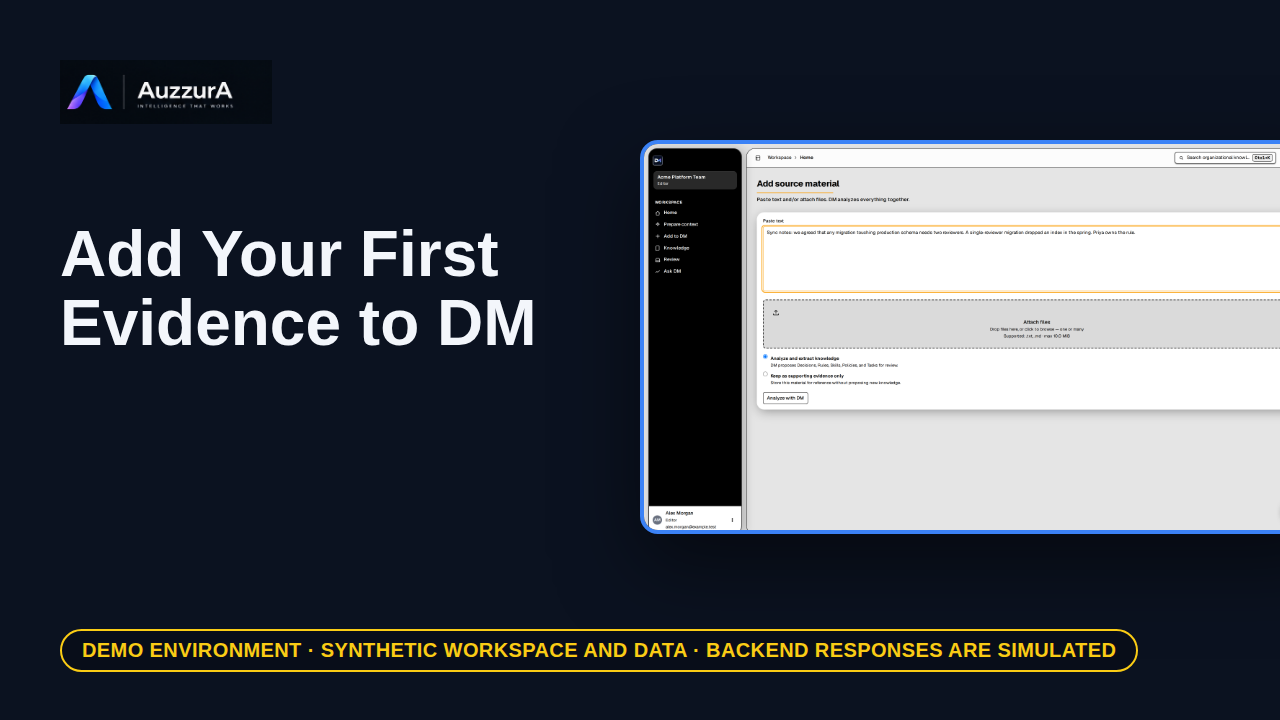
Start from one relevant source rather than recording everything. A team decision often starts in a document, a ticket, or a meeting note.
For: Workspace member
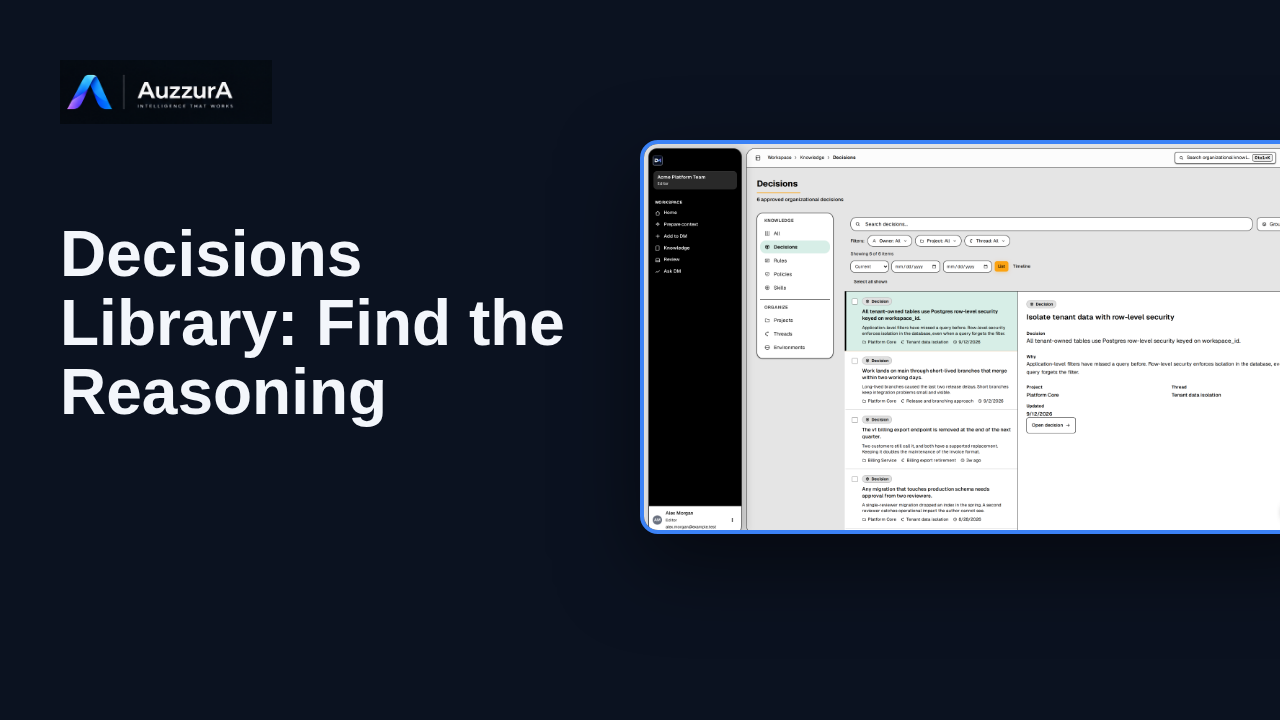
Find a decision’s rationale, owner and source in the Decisions library.
For: Engineer, product owner or reviewer
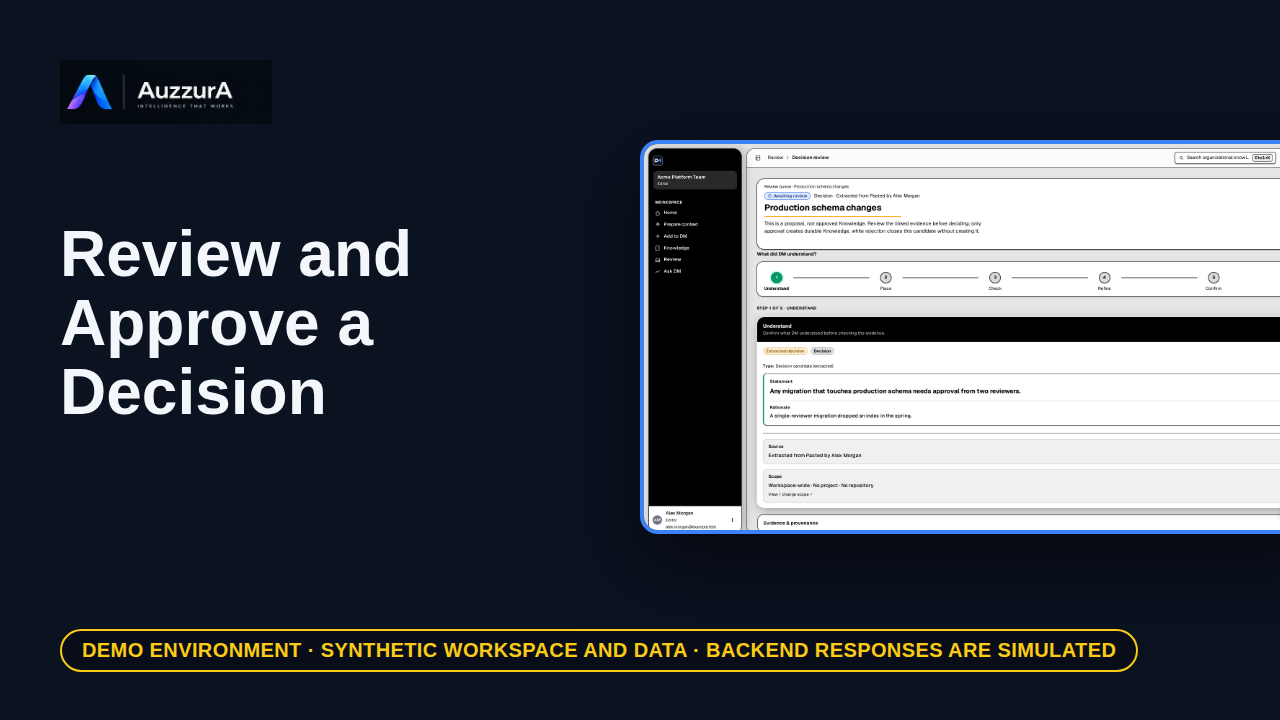
Demonstrate why AI extraction is not automatically team policy. DM proposes what it found. Your team decides what becomes trusted.
For: Reviewer / workspace decision owner