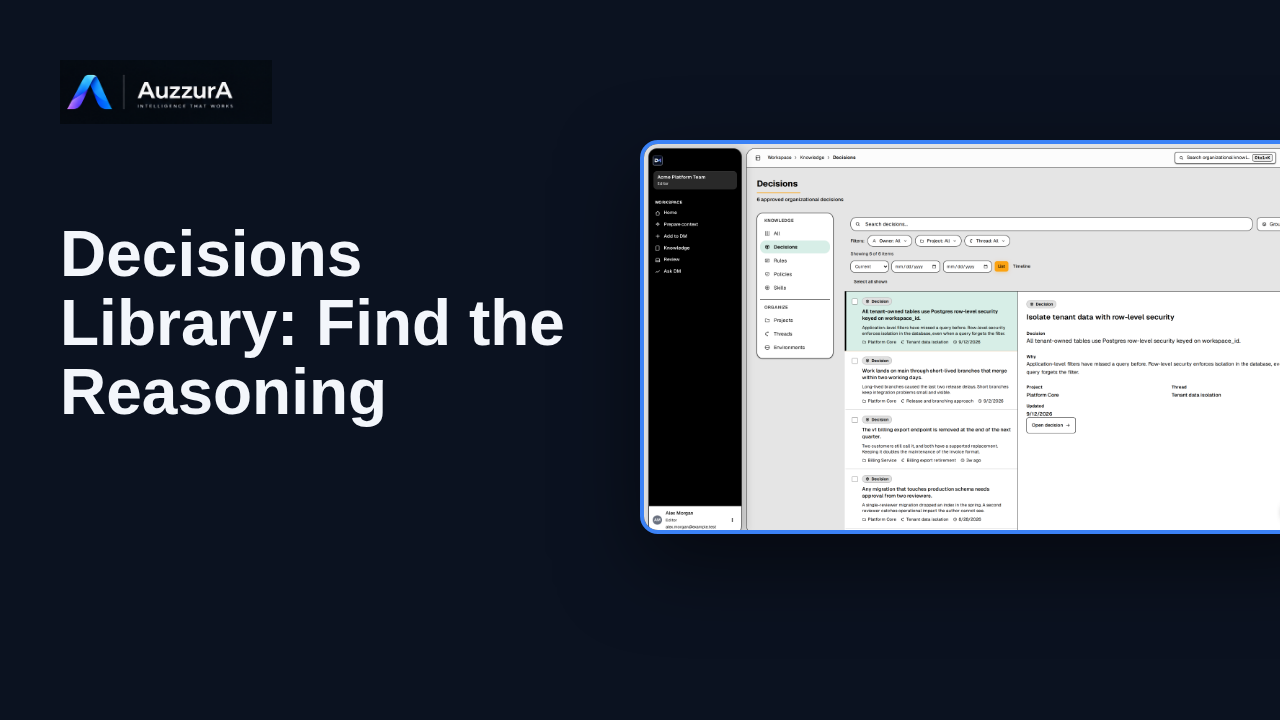
Decisions library: find the reasoning
Find a decision’s rationale, owner and source in the Decisions library.
For: Engineer, product owner or reviewer
Product tour
Explain the differences between the main Knowledge types and where to inspect them. Not everything your team remembers is the same kind of knowledge.
Read the steps OR watch the video. Both teach the same outcome, and neither is needed for the other.Jump to the video
What it means: Start from your DM Home. Your team's knowledge comes in several types, and each one does a different job. Let's look at Rules, Skills and Policies.
What it means: Select Knowledge in the main navigation. Its navigation panel lists each type.
What it means: A rule is a standing instruction for how work should be done. Choose Rules.
What it means: Select a rule to read it.
What it means: This rule says production schema migrations must be approved by two reviewers before they run. The rationale explains why the team set it, and the repository and thread show where it comes from.
What it means: A skill is different. It is a reusable way of doing a kind of task. Choose Skills.
What it means: Select a skill to read it.
What it means: The purpose says what the skill is for, and the instructions say how to carry it out. This one describes how to prepare a safe schema migration.
What it means: A policy is different again. It states what a person or an agent may do, and under what conditions. Choose Policies.
What it means: Select a policy to read it.
What it means: This policy says changes to production data need an approver. It is a record in DM. What it controls outside DM is not shown here.
What it means: Each policy shows its scope, which says who and what it applies to, along with its status and priority. Check the scope before you rely on a rule, a skill or a policy.
What it means: Knowledge shows what your team has approved. New proposals wait in Review until a person approves them. Next, let's use the relevant knowledge when preparing a task.
The rules, skills and policies shown are invented for this tour. A real workspace shows its own, and some types are absent when you lack access or the capability is not enabled.
Policies are shown as records in DM. Whether and how a policy is enforced outside DM was not shown or verified. Creating, editing and approving these items is not demonstrated.
Demo environment · synthetic workspace and data · backend responses are simulated. What each type of knowledge does, and where to read it
This guide tours the real DM Knowledge section with a synthetic workspace and simulated backend responses. Which types you see, and what each contains, depends on your role, your data and what your workspace has enabled.
Disclosure (kept in this transcript and the video description, not drawn on the frames): Demo environment · synthetic workspace and data · backend responses are simulated.
On screen: Start on DM Home (/). A highlight marks "Knowledge".
Narrator: Start from your DM Home.
Narrator: Your team's knowledge comes in several types, and each one does a different job.
Narrator: Let's look at Rules, Skills and Policies.
On screen: Click "Knowledge". The next view is "Knowledge" (/knowledge). A highlight marks "Knowledge".
Narrator: Select Knowledge in the main navigation.
Narrator: Its navigation panel lists each type.
On screen: Click "Rules". The next view is "Rules" (/knowledge/rules). A highlight marks "Rules".
Narrator: A rule is a standing instruction for how work should be done.
Narrator: Choose Rules.
On screen: Click "Rule Review production migrations twice Production schema migrations MUST be app". The next view is "Rules" (/knowledge/rules). A highlight labelled "Select one" marks "Rule Review production migrations twice Production schema migrations…".
Narrator: Select a rule to read it.
On screen: A highlight labelled "The rule" marks "Review production migrations twice".
Narrator: This rule says production schema migrations must be approved by two reviewers before they run.
Narrator: The rationale explains why the team set it, and the repository and thread show where it comes from.
On screen: Click "Skills". The next view is "Skills" (/knowledge/skills). A highlight marks "Skills".
Narrator: A skill is different. It is a reusable way of doing a kind of task.
Narrator: Choose Skills.
On screen: Click "Skill Prepare a safe schema migration Steps an agent follows to draft a migratio". The next view is "Skills" (/knowledge/skills). A highlight labelled "Select one" marks "Skill Prepare a safe schema migration Steps an agent follows to draft…".
Narrator: Select a skill to read it.
On screen: A highlight labelled "The skill" marks "Prepare a safe schema migration".
Narrator: The purpose says what the skill is for, and the instructions say how to carry it out.
Narrator: This one describes how to prepare a safe schema migration.
On screen: Click "Policies". The next view is "Policies" (/knowledge/policies). A highlight marks "Policies".
Narrator: A policy is different again. It states what a person or an agent may do, and under what conditions.
Narrator: Choose Policies.
On screen: Click "Policy Production writes need approval Changes to production data require an app". The next view is "Policies" (/knowledge/policies). A highlight labelled "Select one" marks "Policy Production writes need approval Changes to production data req…".
Narrator: Select a policy to read it.
On screen: A highlight labelled "The policy" marks "Production writes need approval".
Narrator: This policy says changes to production data need an approver.
Narrator: It is a record in DM. What it controls outside DM is not shown here.
On screen: A highlight labelled "Scope" marks "Scope { "actor_selector": { "agent_type": "coding_agent" }, "resource…". A highlight labelled "Status and priority" marks "Status ACTIVE Priority 50".
Narrator: Each policy shows its scope, which says who and what it applies to, along with its status and priority.
Narrator: Check the scope before you rely on a rule, a skill or a policy.
On screen: A highlight marks "Review".
Narrator: Knowledge shows what your team has approved.
Narrator: New proposals wait in Review until a person approves them.
Narrator: Next, let's use the relevant knowledge when preparing a task.
Last verified against the product on .
Find a decision’s rationale, owner and source in the Decisions library.
For: Engineer, product owner or reviewer
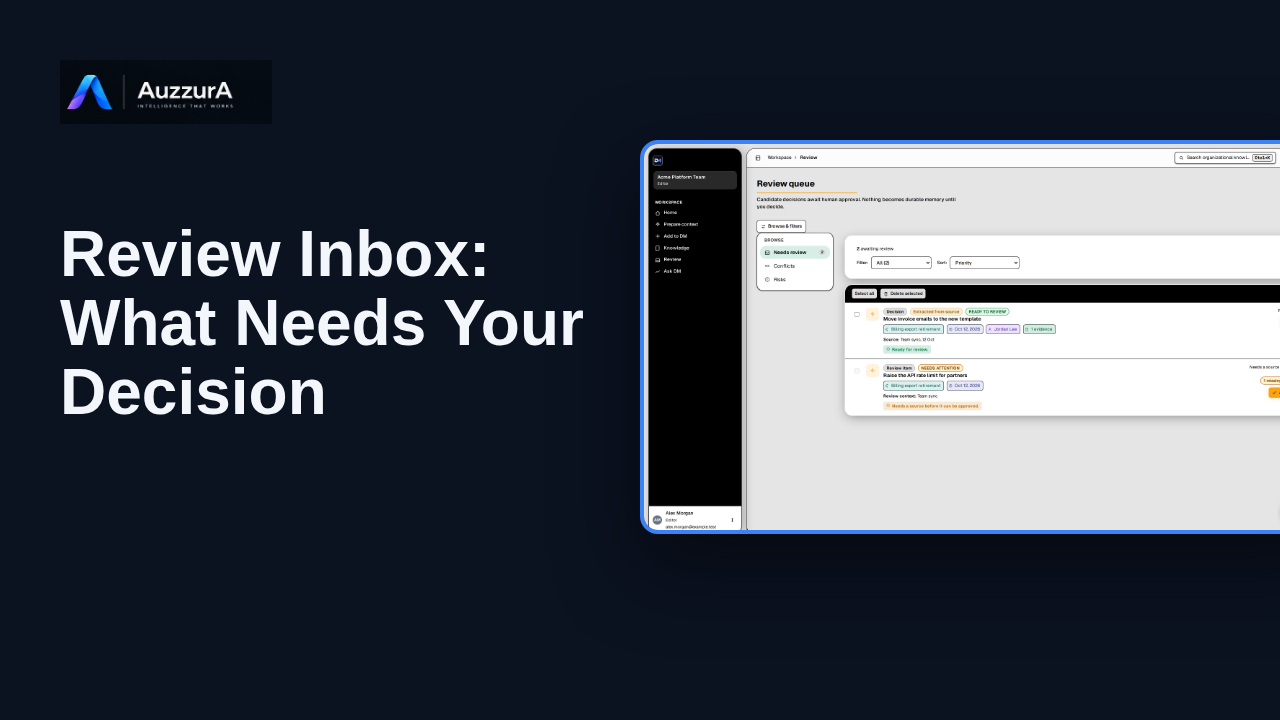
Show how to interpret the review queue before diving into detailed approval. The Review Inbox is where proposed knowledge waits for someone to judge it.
For: Reviewer or workspace decision owner
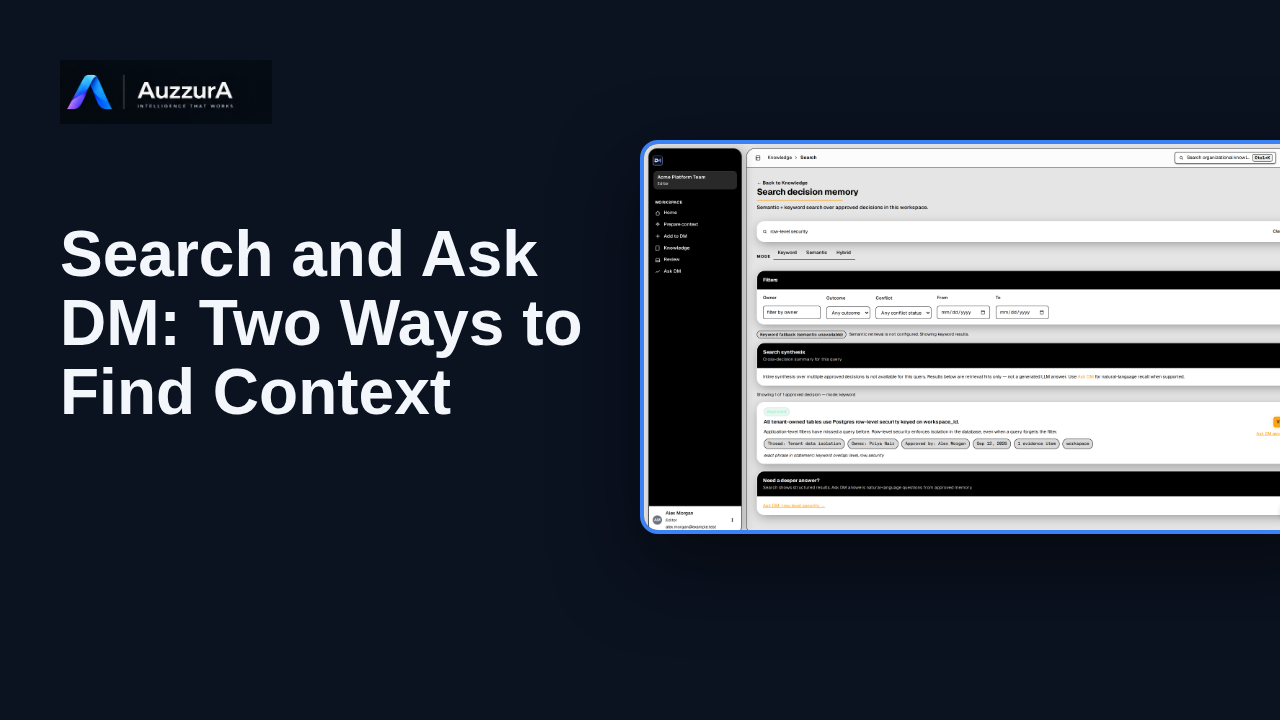
Orient users to search/navigation versus natural-language answer with citations. You do not need to remember a document title to find the decision behind it.
For: Any authorized workspace user
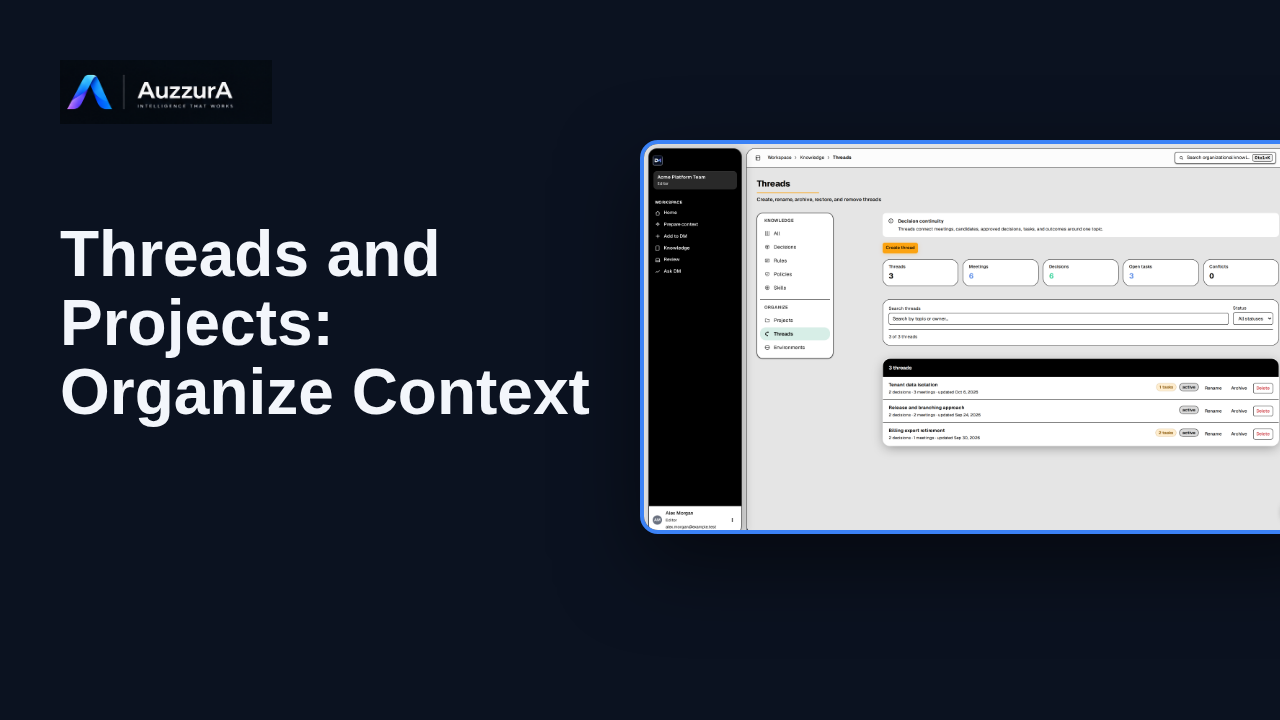
Explain how topic continuity and project organization work in the Knowledge section. Decisions change over time. Threads help keep their history connected.
For: Workspace member or project lead